
A mailer in BooleanSMTP is a connection: one mail provider, its credentials, and the sender details your site uses when it sends through that provider. Every email your site sends — contact forms, password resets, order receipts — goes out through whichever connection BooleanSMTP resolves for it, instead of your web server’s own mail setup.
Pick a mailer
Five providers are ready to connect:
| Mailer | How it sends | Best for |
|---|---|---|
| Amazon SES | HTTPS API or SMTP | High-volume sending at low cost |
| Google Workspace | Gmail API (OAuth) or SMTP (app password) | Business email already on Google |
| Microsoft Outlook | Microsoft Graph API only | Business email already on Microsoft 365 |
| Custom SMTP | SMTP, to any server you configure | Your host’s mail server, or a provider not listed here |
| PHP Mail | Your server’s own mail() function |
Local testing, or a last-resort fallback |
The Choose a Mailer screen currently lists these five providers.
Not sure which of the five fits your site? See Which mailer should I use?.
Manage your connections
Add a connection under BooleanSMTP → Mailers → Add Connection. The first one you add during setup becomes your primary connection; add a second under Settings → Fallback Connection so BooleanSMTP has somewhere to retry a failed send.
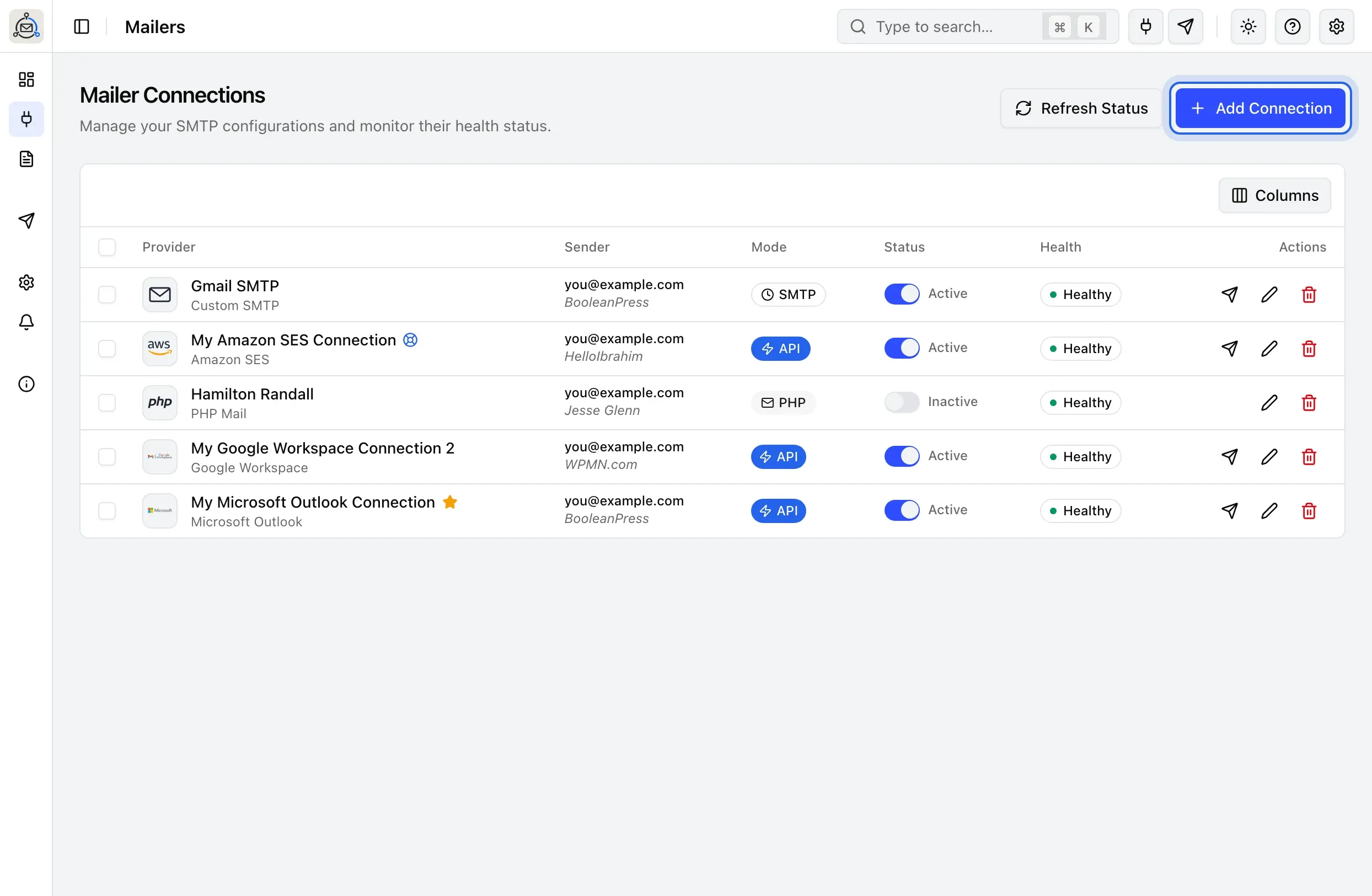
What each row shows
Each row covers one connection, from Provider on the left to Actions on the right. Hide the Sender, Mode or Health columns you don’t need with the Columns button described below; Provider, Status and Actions always show.
Provider shows the connection’s icon, the name you gave it, and the provider it uses underneath it, such as Amazon SES or Google Workspace.
Default and fallback badges
An amber star next to a connection’s name means it’s the Default Connection in Settings → Delivery & Reliability: the one BooleanSMTP uses when nothing more specific claims the message. A blue lifebuoy icon means it’s the selected Fallback Connection, retried once when the primary send fails. Hover over either icon for details, including a warning if the connection is inactive (an inactive connection is skipped for automatic sending even while assigned this way) or, on the fallback badge, if fallback is currently turned off in Settings. Change either assignment on the Settings References page; you can’t reassign them from this list.
Sender shows the connection’s From Email, with its From Name underneath in italics, or Not configured if you haven’t set one yet. If two connections on your site share a From address because one was saved before BooleanSMTP’s one-address-one-connection rule existed, a short warning appears here explaining which connection actually handles mail for that address; see One connection per sender.
Mode shows how the connection sends: a clock icon for SMTP, a lightning bolt for API, or
an envelope for PHP (your server’s built-in mail() function).
Check a Google or Outlook connection’s sign-in status
For a Google Workspace or Microsoft Outlook connection sending over its API, hover over (or tap) the API badge to see its OAuth sign-in status:
| Tooltip | What it means |
|---|---|
| Token valid (46m left), or Token valid (3h left) | The connection’s current access token is still good for that long. |
| Token expired | The stored token has expired; BooleanSMTP needs a fresh sign-in before it can send. |
| No refresh token | Google or Microsoft didn’t return a token BooleanSMTP can use to renew access on its own. |
| Token expiry unknown | BooleanSMTP has a refresh token on file but no recorded expiry for it yet. |
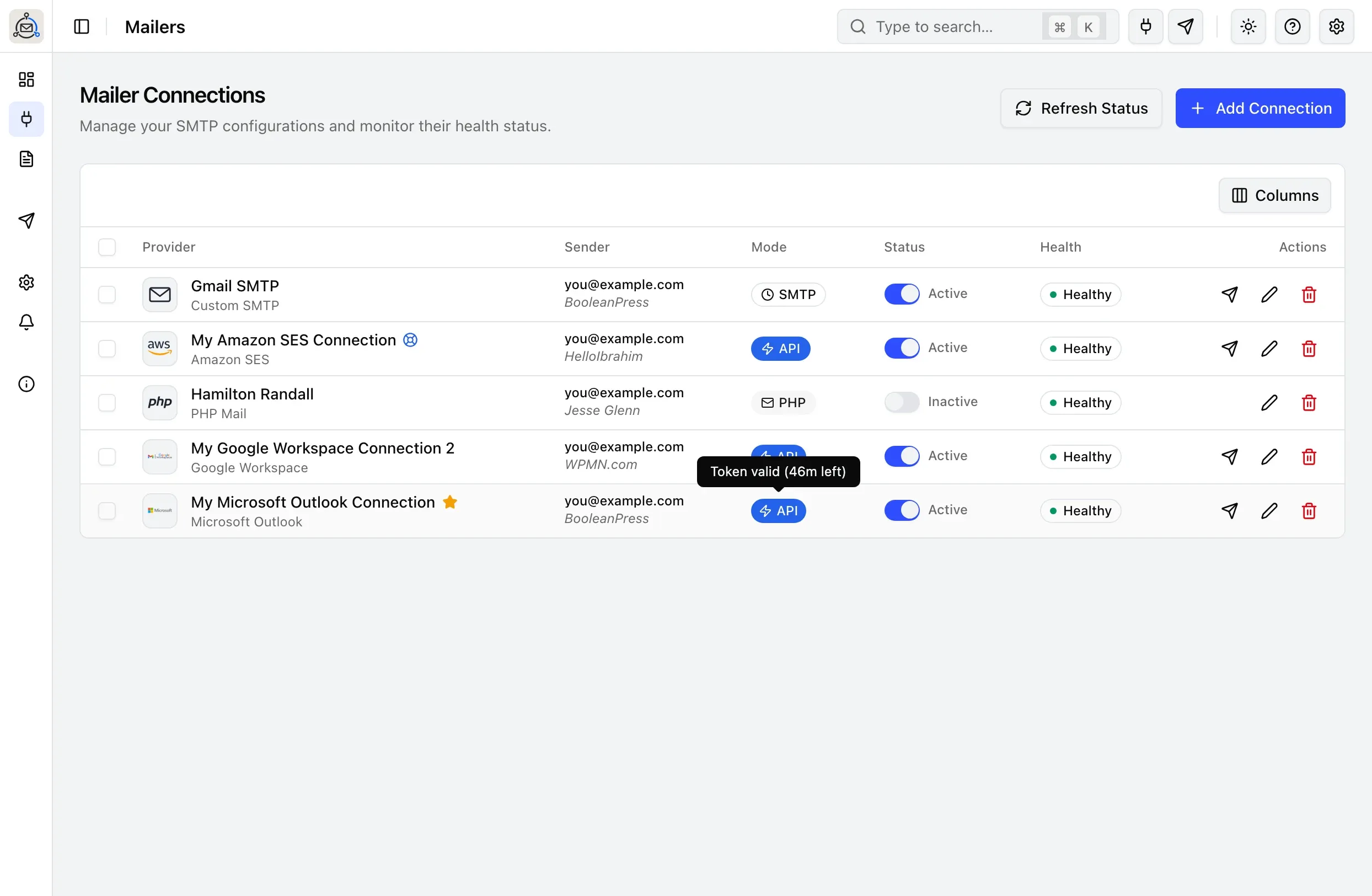
To fix an expired or missing token, open the connection with the pencil icon under Actions and reconnect the account.
Status is the Active/Inactive switch. Turning off a connection currently assigned as the Default or Fallback Connection asks you to confirm first: its Settings assignment stays saved, but automatic email skips it until you turn it back on; another active connection takes over as default if one exists, and an assigned fallback stops being tried immediately.
Health shows the result of the connection’s last check: Healthy, Error, or Unknown for one BooleanSMTP hasn’t checked yet. Active connections are checked automatically on a regular schedule, and immediately whenever you send a Quick Test or Test Email through one. Hover over a red Error status to see the error message from that check.
Test, edit or delete a connection
Use the icons under Actions:
- Quick Test, the paper plane icon shown only on active connections, opens a small dialog to send a real test email through that connection, addressed to your own account’s email by default. It’s recorded in Email Logs like any other send.
- Edit, the pencil icon, opens the connection’s settings, including reconnecting an expired OAuth account.
- Delete, the trash icon, removes the connection once you confirm. This can’t be undone.
Refresh status, add a connection, and choose columns
Above the table:
- Refresh Status reloads the list, including each connection’s latest recorded status and health, without leaving the page.
- Add Connection opens the Choose a Mailer screen described above.
- Columns shows or hides the Sender, Mode and Health columns; Provider, Status and Actions always show.
If you have more connections than fit on one page, BooleanSMTP shows 10 per page by default. Use Rows per page below the table to switch to 25, 50 or 100, and Previous/Next to move between pages.
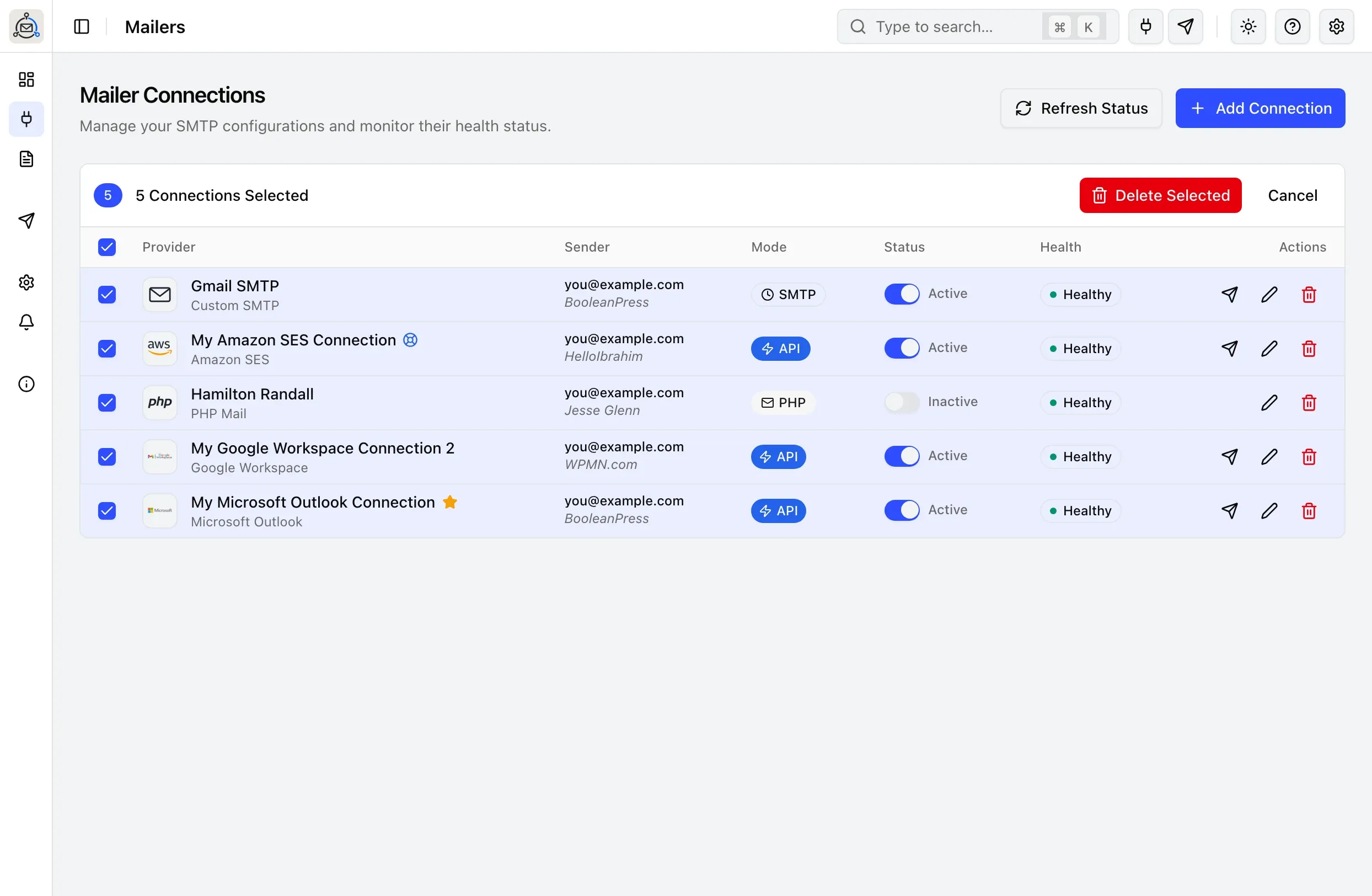
Select and delete multiple connections
Check a row, or the checkbox in the header to select every connection, including ones on other pages. The toolbar then switches to show how many are selected, with Delete Selected and Cancel. Delete Selected asks you to confirm before removing all of them at once; this can’t be undone either.