

BooleanSMTP connects to Gmail or Google Workspace two ways on the free plan: the Gmail API with your own Google Cloud OAuth app, or SMTP with an app password. Google retired password-only sending for both personal Gmail and Google Workspace, so one of these two is required; the Gmail API is the default and needs no separate app password.
Before you begin
- A Google account (personal Gmail or Google Workspace) with 2-Step Verification available; both paths below need it, whether to generate an app password or to sign in during OAuth consent.
- For the Gmail API path: access to Google Cloud Console to create an OAuth app.
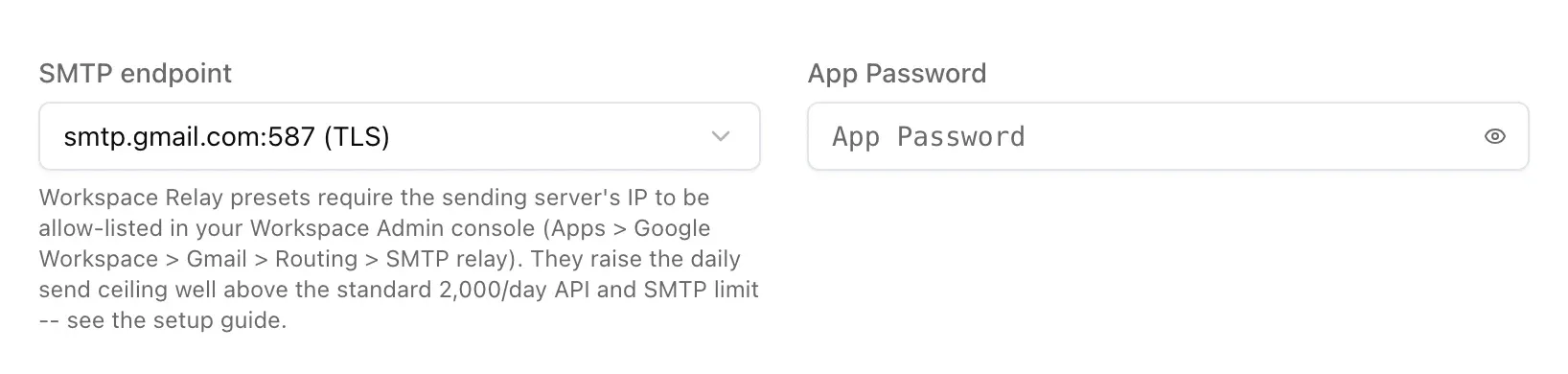
- Daily sending limits are Google’s own, not BooleanSMTP’s: personal Gmail accounts are capped at 500 emails/day; Google Workspace accounts get 2,000/day over either mode. A Workspace account needing more can use the higher-volume relay covered under SMTP below.
Add the connection
- In your WordPress admin sidebar, go to BooleanSMTP → Mailers.
- Click Add Connection and choose Google Workspace.
- Under Sender Settings, fill in From Email (your full Gmail/Workspace address) and From Name.
- Under Google Workspace Connection, choose a delivery mode: Gmail API (HTTPS, OAuth), the default, or SMTP (app password). Each mode’s own fields are covered next.
Gmail API (OAuth)
- In Google Cloud Console, create or select a project, then go to APIs & Services → Library, search for Gmail API, and click Enable.
- Go to APIs & Services → OAuth consent screen and configure it: choose External (or Internal if this project is restricted to your own Workspace domain), and fill in the required app name and support email.
- Go to APIs & Services → Credentials → Create Credentials → OAuth client ID, with application type Web application.
- Copy the Authorized Redirect URI BooleanSMTP shows on the connection form (see below) into this OAuth client’s Authorized redirect URIs, exactly as shown, then save. Copy the Client ID and Client Secret Google gives you; it shows the secret only once.
- Back on the connection form, paste the Client ID and Client Secret.
- Click Authorize. This saves your details as an inactive draft and opens Google’s consent screen in the same tab; complete it, and Google returns you to BooleanSMTP.
- Click Save Mailer to finish.
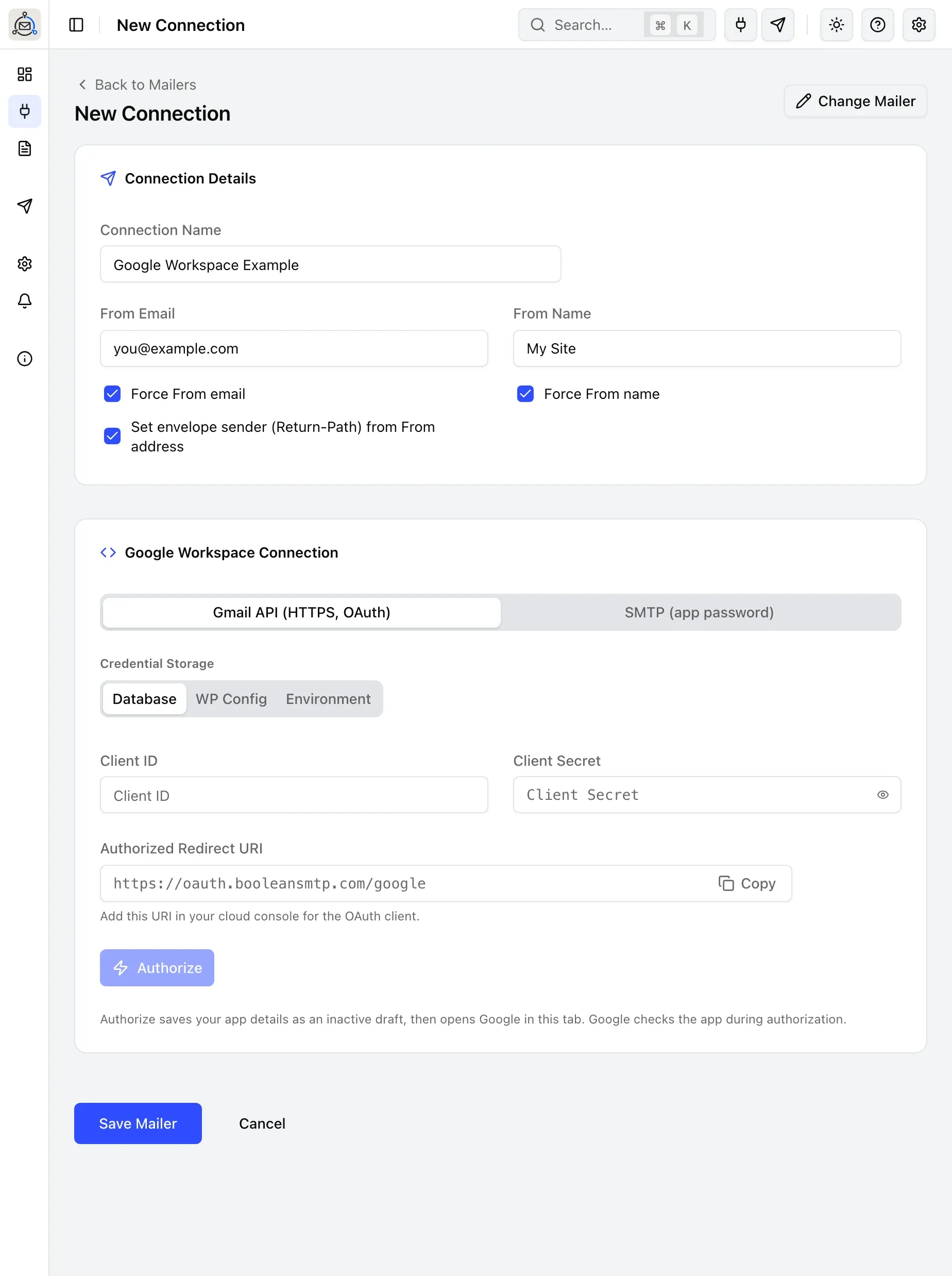
The Authorized Redirect URI BooleanSMTP shows isn’t your own site’s address; it’s a fixed one at
oauth.booleansmtp.com. Google requires an OAuth client’s redirect URI to be an exact, stable HTTPS
address, and a site’s own URL can change (staging, a domain move); BooleanSMTP routes the redirect
through this one fixed address, which immediately forwards your browser back to your own site to
finish the connection. That relay only ever sees the one-time authorization code Google issues in
the URL, nothing more: your Client Secret stays on your own site, and the resulting access and
refresh tokens come back to your site directly from Google, never through the relay.
SMTP (app password)
- On your Google Account, turn on 2-Step Verification if it isn’t already (myaccount.google.com/security), then go to App Passwords under it and generate one for Mail.
- Back on the connection form, choose an SMTP endpoint (
smtp.gmail.com:587 (TLS)is the default) and fill in App Password with the 16-character password you generated. - Click Register Connection.
Send a test email
Use Test Email in the sidebar to confirm the connection works: see Send a test email for the steps.
A successful-looking result inside BooleanSMTP is the first signal, not the only one worth checking:
- In your inbox: confirm the email actually arrived, checking spam or junk first.
- In Email Logs: find the send and confirm its status.
- On the connection itself (Gmail API mode): reopen it (the pencil icon under Actions) and confirm it still shows Account connected, rather than prompting you to authorize again.
- A week later, for a brand-new OAuth app: re-check that a send still works. This is exactly when an unpublished (“Testing” status) consent screen’s refresh token would silently expire; see the caution above.
Common errors
- “invalid_grant”, or the connection stops working after about a week: the OAuth consent screen is still in Testing status; publish it to In production.
- “redirect_uri_mismatch”: the URI pasted into Google Cloud Console doesn’t exactly match the one BooleanSMTP shows on the connection form, including the scheme and any trailing slash.
- “Daily sending quota exceeded”: personal Gmail is capped at 500 emails/day, Google Workspace at 2,000/day over the API or standard SMTP; the Workspace SMTP relay above raises that ceiling.