

Go to BooleanSMTP → Settings in your WordPress admin. These settings apply across your site. Edit connection details, such as provider credentials or the From address, on the connection itself under Mailers.
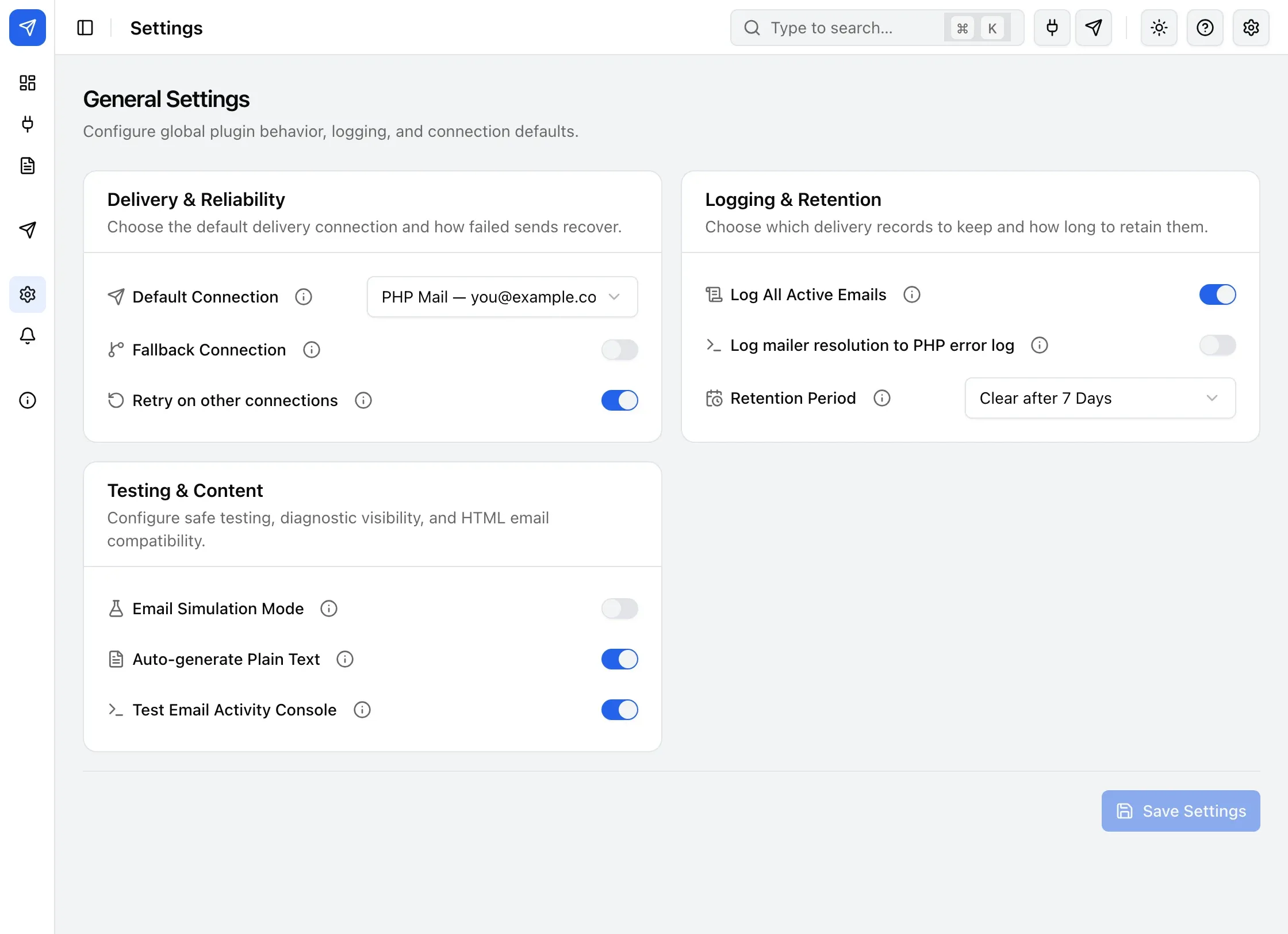
Delivery & Reliability
| Setting | What it does | Default | Explained on |
|---|---|---|---|
| Default Connection | The connection used when nothing more specific claims the message. | System Default (PHP Mail) | How a connection is chosen |
| Fallback Connection | Retried once, immediately, when the primary send fails. | On, no connection chosen | Fallback and retries |
| Retry on other connections | Queues a still-failing send for up to 2 more retries on your other active connections. | On | Fallback and retries |
Logging & Retention
| Setting | What it does | Default | Explained on |
|---|---|---|---|
| Log All Active Emails | Keeps a delivery record, visible on Email Logs, for every outgoing email. | On | Log retention |
| Log mailer resolution to PHP error log | Writes one JSON line per email to your server’s PHP error log, showing which connection and transport were chosen. | Off | Log retention |
| Retention Period | How long email logs are kept before BooleanSMTP clears them automatically. | 30 days | Log retention |
Testing & Content
| Setting | What it does | Default | Explained on |
|---|---|---|---|
| Email Simulation Mode | Records outgoing emails to Email Logs instead of sending them. | Off | Simulation mode |
| Auto-generate Plain Text | Creates a plain-text alternative for an HTML email, which improves compatibility with some inboxes. | On | Not linked |
| Test Email Activity Console | Shows the SMTP handshake on the Test Email page when you send a test. | Off | Not linked |