

BooleanSMTP connects to Microsoft 365 or Outlook.com through the Microsoft Graph API, the only delivery mode on the free plan. Microsoft has disabled SMTP AUTH Basic Authentication by default for new tenants and is phasing it out for existing ones, and there’s no app-password equivalent for a Microsoft 365 mailbox the way Google offers one for Gmail; Graph sends the same mail without that expiry risk. Registering a small Azure app is the only setup cost, and it takes a few minutes.
Before you begin
- Access to the Microsoft Entra admin center to register an app; any work or school account allowed to register apps, or your own personal Microsoft account, can do this.
- The mailbox address you’ll send from. A personal
outlook.com,hotmail.com,live.comormsn.commailbox and a paid Microsoft 365 work or school mailbox both work the same way.
Add the connection
- In your WordPress admin sidebar, go to BooleanSMTP → Mailers.
- Click Add Connection and choose Microsoft Outlook.
- Under Sender Settings, fill in From Email (the mailbox you’ll authorize) and From Name.
Microsoft Graph (OAuth)
- In the Microsoft Entra admin center, go to App registrations → New registration and register a Web app, choosing the account type based on who should be able to sign in; see Tenant ID below before picking this.
- Under Redirect URI, paste the exact value BooleanSMTP shows as Authorized Redirect URI on the connection form you opened above, then save.
- Go to Certificates & secrets → New client secret, and copy the Value immediately, not the Secret ID; Microsoft shows it once.
- Go to API permissions → Add a permission → Microsoft Graph → Delegated permissions, and add
Mail.Send,User.Read, andoffline_access. AddMail.Send.Sharedtoo if you plan to use Sending as a shared mailbox. - Back on the connection form, paste the Client ID and Client Secret, and set Tenant ID.
- Click Authorize and complete Microsoft’s consent screen.
- Click Save Mailer to finish.
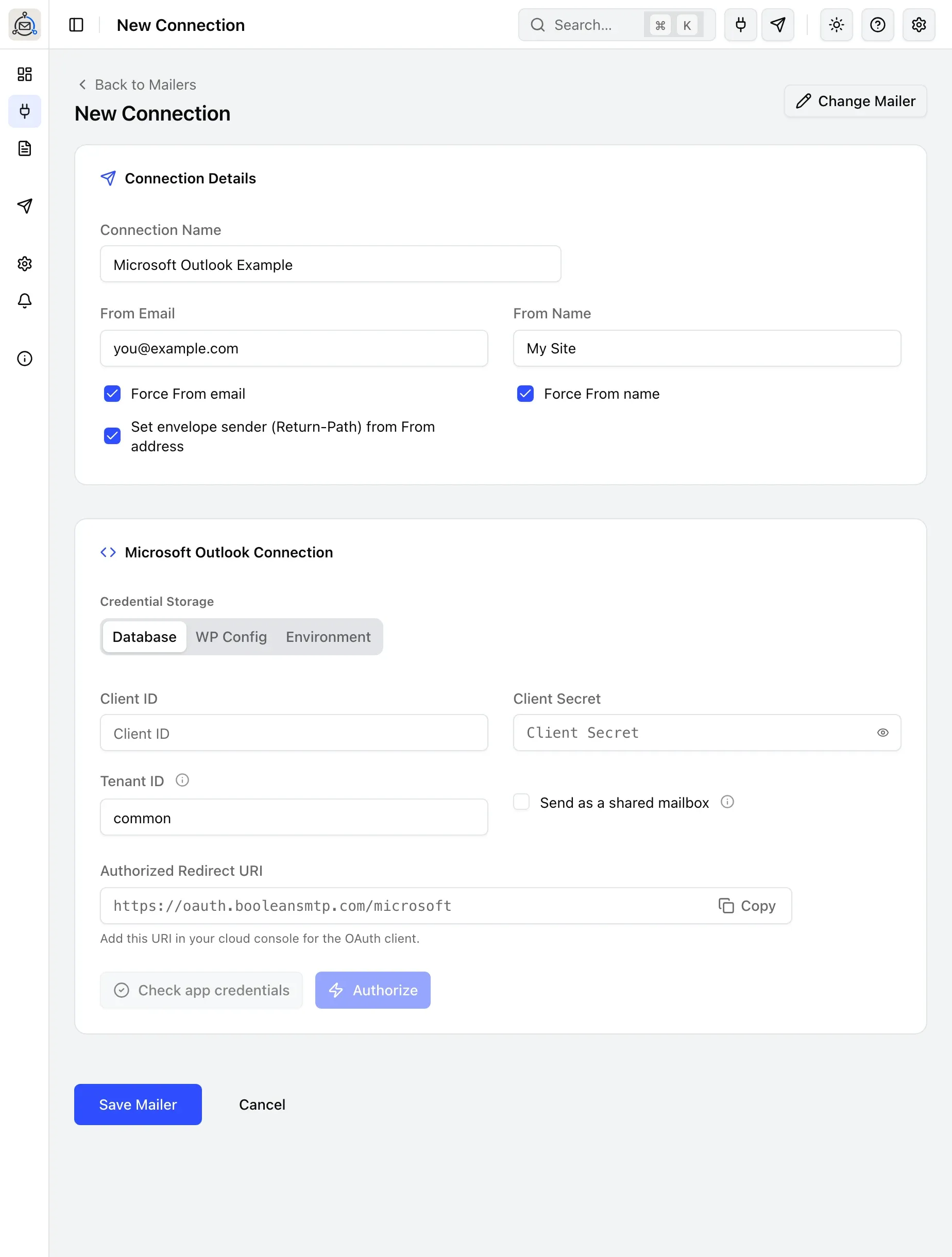
The Authorized Redirect URI shown isn’t your own site’s address; it’s a fixed one at
oauth.booleansmtp.com, the same relay Google Workspace uses for its own Gmail
API connections. Google requires an OAuth client’s redirect URI to be an exact, stable HTTPS address,
and a site’s own URL can change; this fixed relay immediately forwards your browser back to your own
site to finish the connection, and only ever sees the one-time authorization code Microsoft issues in
the URL. Your Client Secret stays on your own site, and the resulting access and refresh tokens come
back to your site directly from Microsoft, never through the relay.
Tenant ID
Leave Tenant ID as common unless you need to restrict sign-in to one organization; then use
your tenant’s GUID (Entra admin center → your app → Overview → Directory (tenant) ID). Once
you’ve entered a Client ID and a real tenant (not common, organizations or consumers),
BooleanSMTP shows a Grant admin consent for your organization button next to the credential
fields, letting an administrator approve the app for everyone in the organization in one step instead
of every mailbox owner consenting individually; it opens in a new tab. This button only appears with
Database credential storage; see Choose where credentials are stored
below.
Sending as a shared mailbox
Enable Send as a shared mailbox, set From Email to the shared mailbox’s address, and
authorize with an account that has Exchange “Send As” or “Send on behalf” rights to that
mailbox, not the shared mailbox’s own login (shared mailboxes typically don’t have one). Make sure the
Entra app also has the Mail.Send.Shared delegated permission from step 4 above.
Choose where credentials are stored
Like every BooleanSMTP mailer, Credential Storage offers Database, WP Config, or Environment for the Client ID, Client Secret, and Tenant ID fields. In WP Config or Environment mode, leave those fields blank in the form and instead define:
define('BOOLEANSMTP_OUTLOOK_CLIENT_ID', '...');
define('BOOLEANSMTP_OUTLOOK_CLIENT_SECRET', '...');
define('BOOLEANSMTP_OUTLOOK_TENANT_ID', 'common'); // or your tenant's GUID
As Environment, define the same names as OS environment variables instead of PHP constants. See Storing credentials in wp-config for the general naming rule.
Whichever you choose, you still click Authorize once to grant BooleanSMTP an OAuth token for the mailbox: moving the app credentials out of the database doesn’t skip Microsoft’s consent screen, and the access and refresh tokens it returns are stored encrypted in the database regardless, the same as any other OAuth connection.
Send a test email
Use Test Email in the sidebar to confirm the connection works: see Send a test email for the steps.
A successful-looking result inside BooleanSMTP is the first signal, not the only one worth checking:
- In your inbox: confirm the email actually arrived, checking spam or junk first.
- In Email Logs: find the send and confirm its status.
- On the connection itself: reopen it (the pencil icon under Actions) and confirm it still shows Account connected with the authorized mailbox’s address, rather than prompting you to reconnect.
Common errors
- “redirect_uri_mismatch”: the URI pasted into the Entra app registration doesn’t exactly match the one BooleanSMTP shows as Authorized Redirect URI, including the scheme and any trailing slash.
- “Check app credentials” fails right away: Microsoft rejected the Client ID, Client Secret, or Tenant ID itself, before any sign-in happens; re-check all three against the Entra app registration.
- 401 with an empty body on
/me/sendMail, but/mestill returns 200: the signed-in identity has no mailbox in this tenant, often a guest (#EXT#) account; reconnect with a mailbox-enabled account, or set Tenant ID tocommonif this is meant to be a personal or multi-tenant setup. - “…does not have the right to send mail on behalf of the specified sending account”: the authorizing account lacks Exchange delegate rights to the mailbox in From Email; see Sending as a shared mailbox above.
- A previously working SMTP connection stopped working: Outlook has no SMTP mode; switch to the Microsoft Graph setup on this page.