

When email logging is enabled in Settings, Email Logs keeps a record of messages BooleanSMTP has handled. Successful means the send transport reported success; it does not confirm that the recipient received it.
Browse and search
- In the sidebar, click Logs.
- Use the tabs: All, Successful, Simulated, Failed, Pending, to filter by status.
- Type in the search box to filter by recipient or subject.
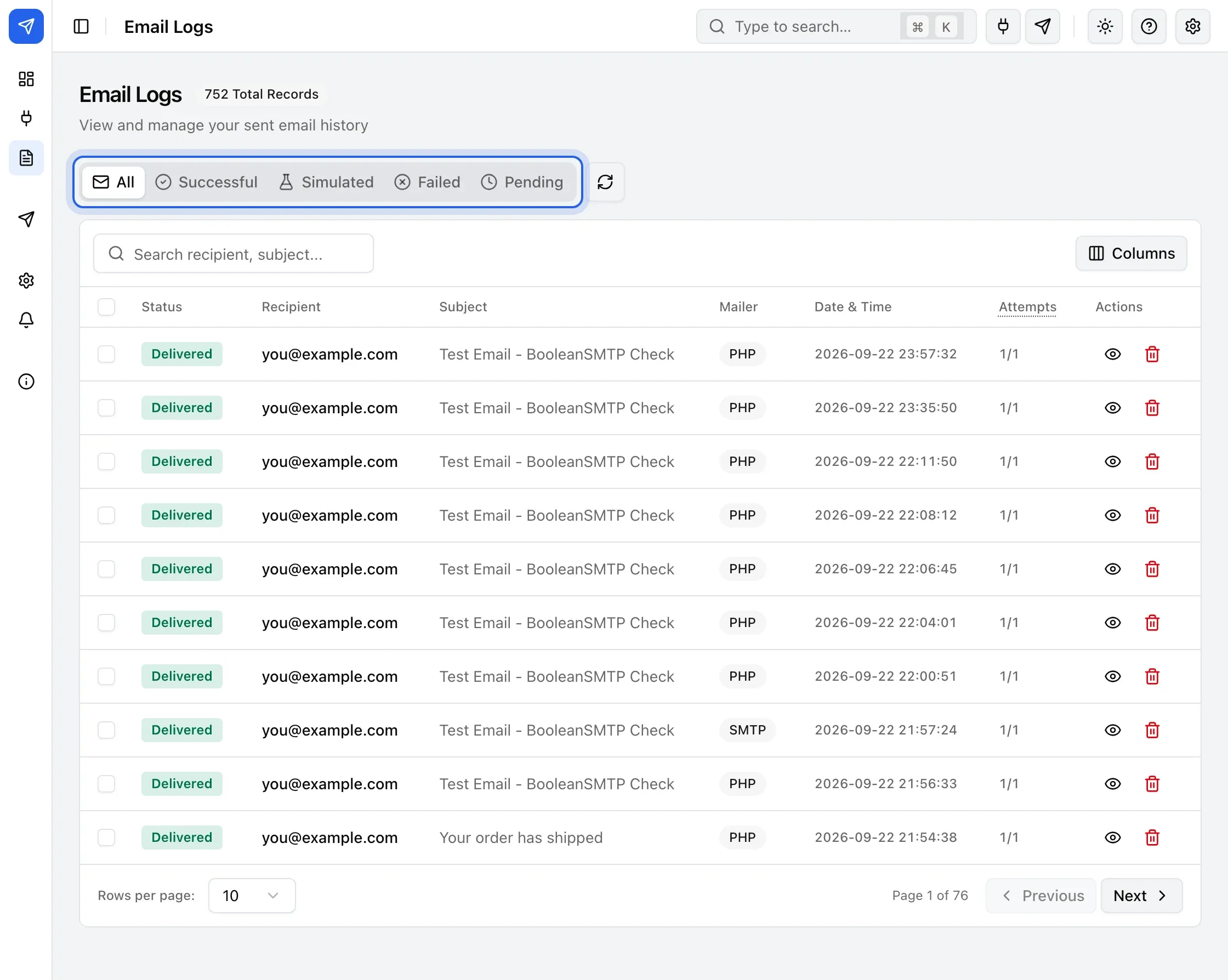
Open an entry
Click an entry’s subject, or its eye icon under Actions, to see its full detail: recipient, From address, date, mailer driver, any delivery error, and Preview, Raw Headers and Technical Details tabs.
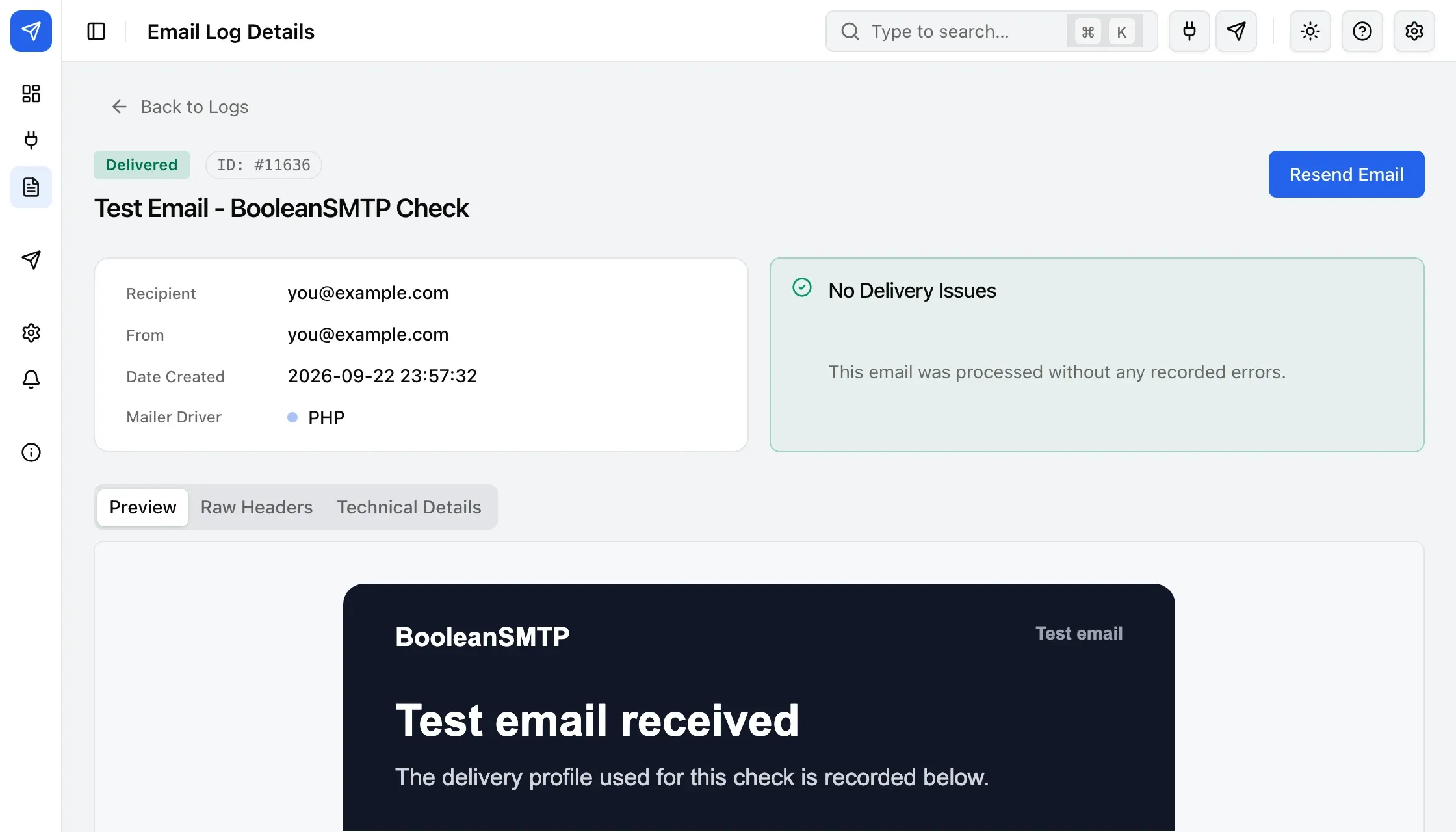
Preview
Renders the message’s stored body exactly as it was sent, in a sandboxed frame that can’t run scripts. Any attachments the message carried are listed above it, with each file’s name, size, and type. If the body wasn’t stored for this entry, this tab shows Email body not available instead.
Raw Headers
The complete set of MIME headers PHPMailer actually sent with this message: Date, From, To, Subject, Message-ID, MIME-Version, Content-Type, and any custom header BooleanSMTP or another plugin added, shown as JSON.
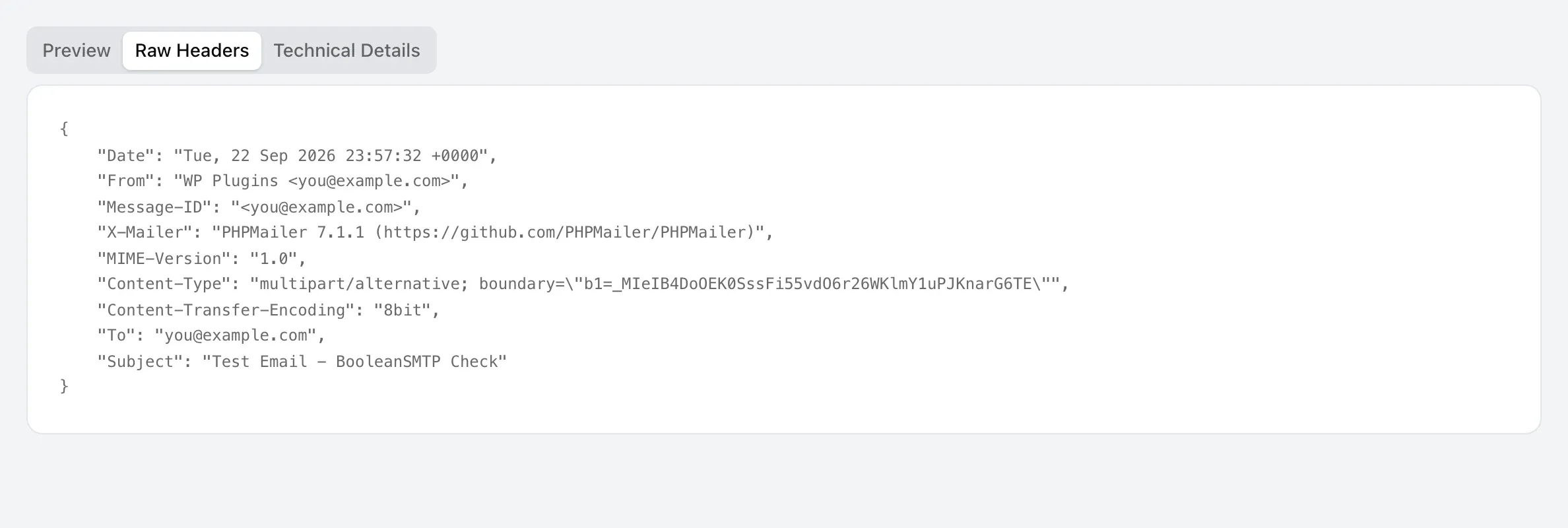
This is what actually left the server, not what the compose screen showed, so it’s the place to confirm the real From address a filter may have rewritten, or the exact Message-ID to hand a receiving mail server’s postmaster when chasing a delivery problem.
Technical Details
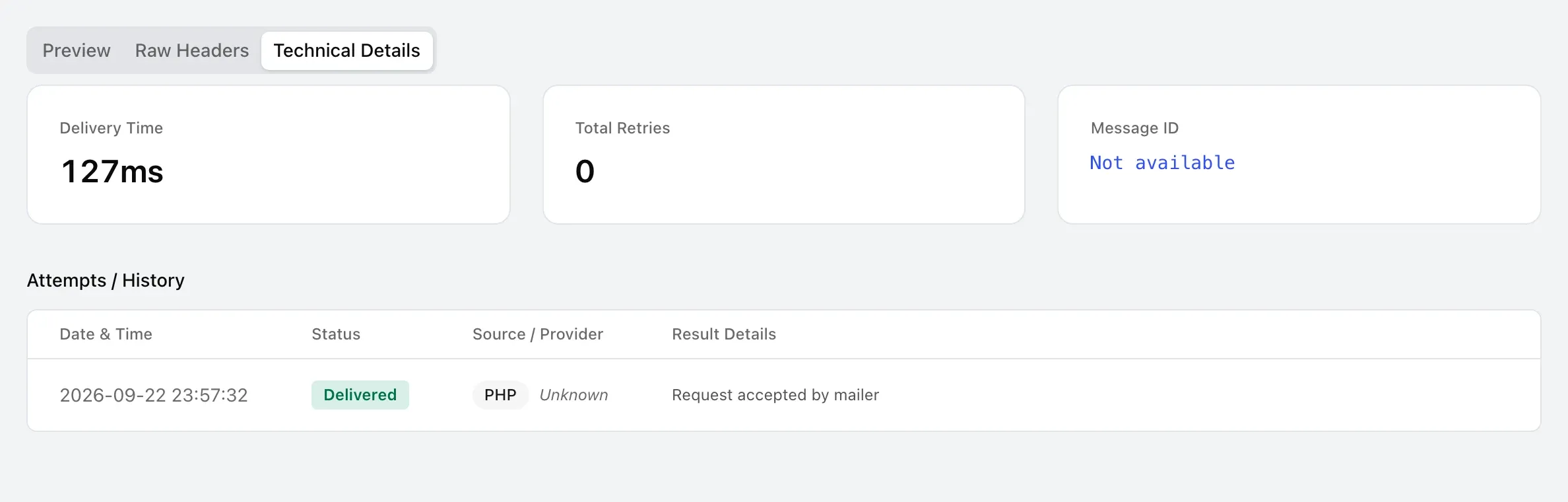
- Delivery Time: how long the successful send took, in milliseconds. Only recorded once a send actually succeeds; a failed or still-pending entry shows a dash.
- Total Retries: how many further attempts followed the first.
- Message ID: the provider’s own delivery-tracking ID, when the provider returns one. Amazon SES
returns one; other mailers show Not available here. This isn’t the
Message-IDheader under Raw Headers, which PHPMailer generates for every send regardless of provider; this one is the ID the provider itself uses to trace the message on its side. - Attempts / History: every attempt this email went through, newest first:
- Source / Provider: the connection’s driver for that specific attempt (relevant once a fallback connection takes over after a failure), and where the send was triggered from: a name like Plugin: woocommerce or Theme: twentytwentyfour, a wp-content path when BooleanSMTP can trace the call that far but not to a specific plugin or theme, or Unknown when it can’t trace the call at all, which is normal for a send BooleanSMTP’s own Test Email tool or WordPress core itself triggered.
- Result Details: that attempt’s own error message, or Request accepted by mailer once it succeeded.
Resend or delete
Click Resend Email on an entry’s detail page, or select rows on the list and use the bulk actions, to send it again through its original connection when that connection is still active. If it is unavailable, BooleanSMTP uses the primary connection. The resend updates the existing log entry. Delete a log singly or in bulk.
Next steps
- Log retention
- Fallback and retries: see an entry’s retry attempts.
- Troubleshooting