

Amazon SES sends through either its HTTPS API or its SMTP endpoints, both available on BooleanSMTP’s free plan. HTTPS API is the default: it needs only an access key and secret, and no separate SMTP credentials. Pick SMTP if you already have SES SMTP credentials, or your host restricts outbound HTTPS calls.
Before you begin
-
An AWS account with access to the SES console.
-
An IAM user created for programmatic access (not console sign-in), with an SES-sending policy attached: either the AWS-managed AmazonSESFullAccess, or a custom policy scoped to just what BooleanSMTP needs:
{
  "Version": "2012-10-17",
  "Statement": [
    {
      "Effect": "Allow",
      "Action": [
        "ses:SendRawEmail",
        "ses:SendEmail",
        "ses:GetSendQuota",
        "ses:GetSendStatistics"
      ],
      "Resource": "*"
    }
  ]
}
Generate an Access Key ID and Secret Access Key for this user. AWS shows the secret key once, at creation; copy both values somewhere safe, since a lost secret key means generating a new pair.
-
The From address or domain you’ll send with, verified as a SES identity in the region you plan to send from. Verifying a whole domain (AWS gives you DNS records to add) covers every address at that domain and adds DKIM signing; verifying a single email address is quicker for a first test but only covers that one address.
-
New SES accounts start in the SES sandbox, which only sends to verified recipients. Verify the address you’ll test with too, or your first send fails with “Email address is not verified.”
Add the connection
- In your WordPress admin sidebar, go to BooleanSMTP → Mailers.
- Click Add Connection and choose Amazon SES.
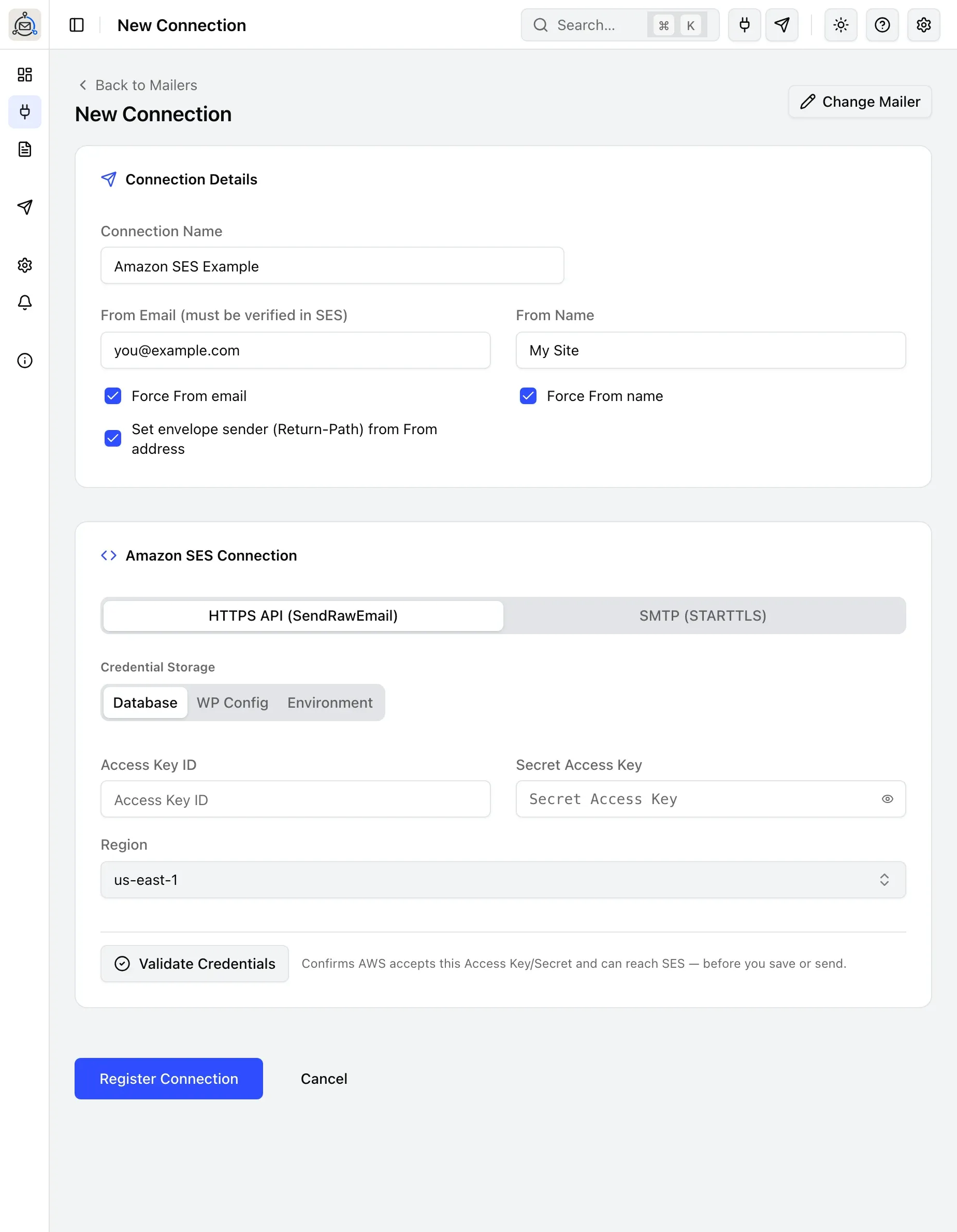
- Under Sender Settings, fill in From Email (must be a verified SES identity) and From Name.
- Under Amazon SES Connection, choose a delivery mode: HTTPS API (SendRawEmail), the default, or SMTP (STARTTLS). Each mode’s own fields are covered next.
- Choose Credential Storage: Database, WP Config, or Environment, covered further down this page.
- Click Register Connection.
HTTPS API
Fill in Access Key ID, Secret Access Key, and Region. The region must match where you verified your identity; the dropdown covers all 27 AWS SES commercial regions.
SMTP
Fill in Region, SMTP Host:Port (a preset locked to the region you picked: 587 for STARTTLS or 465 for SSL/TLS), SMTP Username, and SMTP Password.
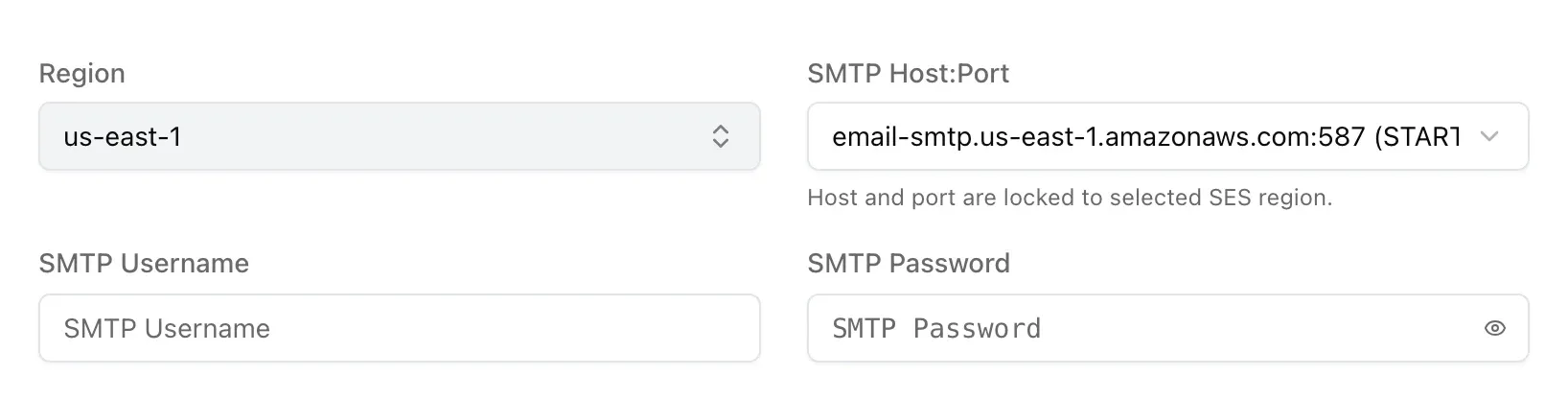
There’s no live validation for SMTP credentials: save the connection, then send a test email to check authentication and delivery.
Choose where credentials are stored
Credential Storage offers three options:
| Option | Where the key/secret live | When to use it |
|---|---|---|
| Database | Encrypted in the WordPress database | Simplest choice; fine for most sites. |
| WP Config | PHP constants in wp-config.php |
Keeps secrets out of the database; needs file access to edit wp-config.php. |
| Environment | OS-level environment variables | Hosting setups (containers, managed platforms) that inject secrets as environment variables. |
In Database mode, paste the Access Key ID and Secret Access Key (or SMTP Username/Password) directly into the form and save; nothing further to configure.
In WP Config or Environment mode, leave those fields blank in the form and instead define, depending on your delivery mode:
// HTTPS API mode
define('BOOLEANSMTP_AWS_ACCESS_KEY_ID', 'AKIA...');
define('BOOLEANSMTP_AWS_SECRET_ACCESS_KEY', '...');
define('BOOLEANSMTP_AWS_REGION', 'us-east-1'); // the region you verified your identity in
// SMTP mode
define('BOOLEANSMTP_AWS_SES_SMTP_USERNAME', '...');
define('BOOLEANSMTP_AWS_SES_SMTP_PASSWORD', '...');
define('BOOLEANSMTP_AWS_SES_SMTP_HOST', 'email-smtp.us-east-1.amazonaws.com');
define('BOOLEANSMTP_AWS_SES_SMTP_PORT', 587);
define('BOOLEANSMTP_AWS_SES_SMTP_ENCRYPTION', 'tls'); // or 'ssl' for port 465As WP Config in the form, the connection shows you this same snippet pre-filled with your chosen region’s real hostname, so you can copy it directly rather than retyping it. As Environment, define the same names as OS environment variables instead of PHP constants.
Whichever source is actually supplying a value shows as a small badge next to the credential fields (Database, WP Config, Environment, or IAM Role); it’s informational only and doesn’t lock the fields. Don’t define a constant as an empty string: BooleanSMTP treats a defined, empty constant as present, which blocks it from falling back to a value stored in the database. For the general rule behind this feature, see Storing credentials in wp-config.
Using an EC2 instance’s IAM role instead
If WordPress runs on an AWS EC2 instance, you can skip storing an access key and secret entirely and let BooleanSMTP fetch temporary credentials from the instance’s attached IAM role instead. This is opt-in, so BooleanSMTP never probes the EC2 metadata endpoint on hosts where it doesn’t apply:
-
Attach an IAM role with the same SES-sending policy from Before you begin to the EC2 instance running WordPress.
-
Enable role detection with a constant in
wp-config.php(or the equivalent environment variable):define('BOOLEANSMTP_AWS_ENABLE_IMDS_ROLE_SOURCE', true); -
Leave Access Key ID and Secret Access Key blank in Database mode, and don’t define the WP Config/Environment constants above either.
-
Save the connection and send a test email. The credential badge should now read IAM Role.
Credential sources are checked in a fixed order: Database, then WP Config, then Environment, then IAM Role, so the role is only used once nothing higher in that order is set.
Send a test email
Use Test Email in the sidebar to confirm the connection works: see Send a test email for the steps. While your account is in the SES sandbox, send to a verified recipient.
A successful-looking result inside BooleanSMTP is the first signal, not the only one worth checking:
- In BooleanSMTP: a failed test expands into an Activity Console showing the actual request and response exchanged with AWS, which usually makes the rejection reason obvious.
- In your inbox: confirm the email actually arrived, checking spam or junk first; a brand-new sending identity has no reputation yet.
- In Email Logs: find the send and confirm its status, rather than trusting the Test Email screen alone.
Move out of the SES sandbox
Sandbox accounts can only send to verified recipients: fine for testing, not for real traffic. To send to any recipient:
- In the SES console, open Account dashboard and click Request production access.
- Describe your use case (for example, transactional emails: password resets, order confirmations, contact form notifications), your expected sending volume, and how you’ll handle bounces and complaints.
- AWS typically responds within 24 hours. Once approved, the sandbox restriction lifts for that region; nothing changes on the BooleanSMTP side.
Common errors
- “MessageRejected” / “Email address is not verified”: the From or To address isn’t verified in SES yet, or was verified in a different region than the one selected on this connection.
IncompleteSignature, or the send fails immediately with an auth-looking error: re-enter the Access Key ID and Secret Access Key rather than reusing a masked placeholder, and check for no leading/trailing whitespace; a Secret Access Key is exactly 40 characters, so a shorter value usually means a copy/paste truncation.- SMTP authentication fails even though the credentials look right: confirm you’re using SES SMTP credentials from SMTP Settings → Create SMTP credentials, not a regular IAM Access Key ID and Secret Access Key; see SMTP above.
- Saved a WP Config/Environment connection but it won’t validate: confirm the constant or environment variable has a non-empty value. An empty value doesn’t replace one already stored in the database.
- A test email “succeeds” in BooleanSMTP but never arrives: check spam or junk first, then confirm you’re not still in the SES sandbox sending to an unverified recipient; a sandbox rejection can still surface as a clear AWS error in the Activity Console.
- Region dropdown looks empty, or shows far fewer entries than expected: hard-refresh the admin page; the connection form’s script may be cached from before a BooleanSMTP update.