

The first time you open BooleanSMTP, a setup wizard starts. It has five steps: Start, Provider, Connect, Verify and Review.
-
On Start, choose Set up a new connection.
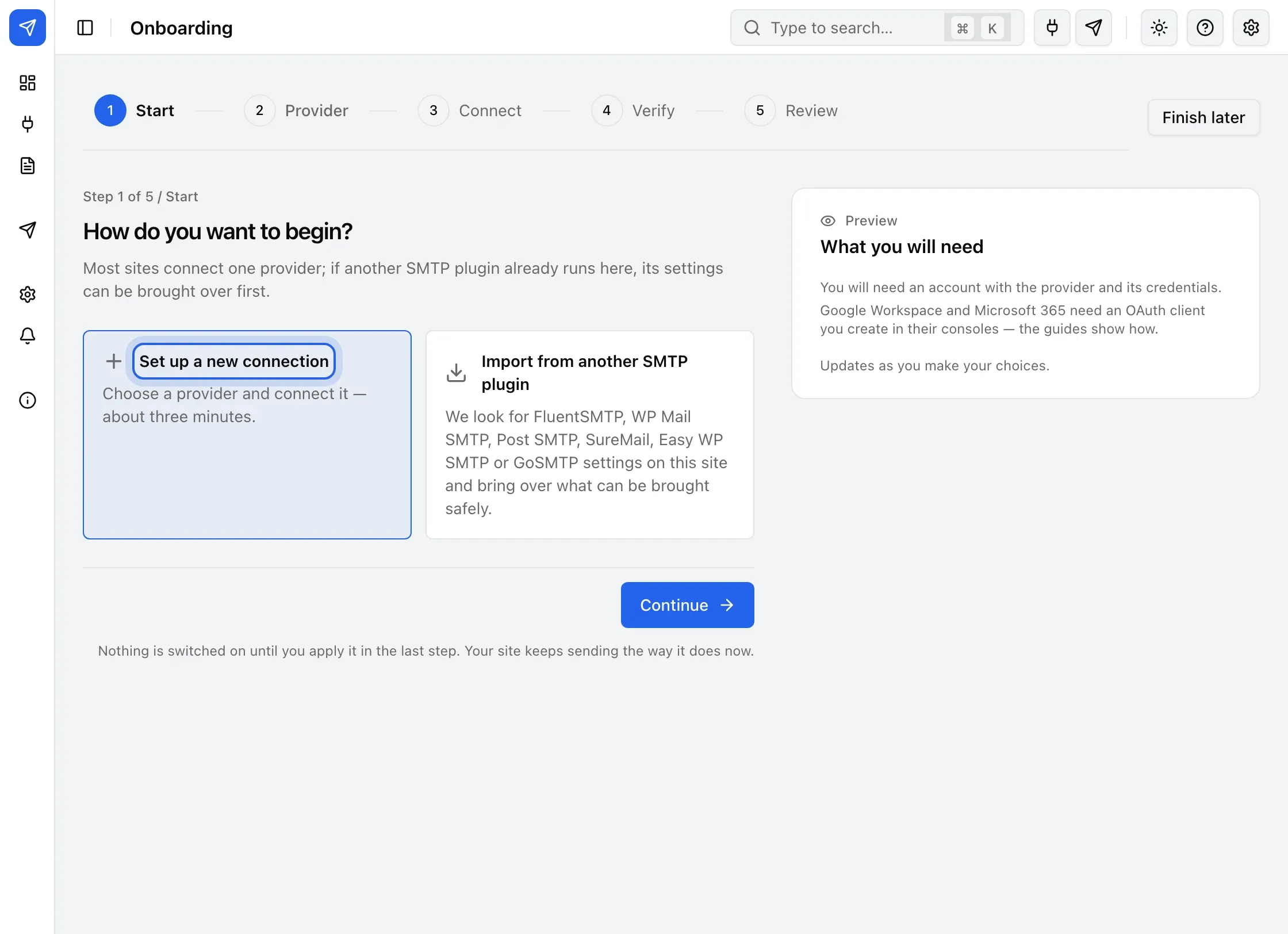
Setup wizard, start step -
On Provider, pick the service you send email with: Amazon SES, Google Workspace, Microsoft Outlook, Custom SMTP, or PHP Mail.
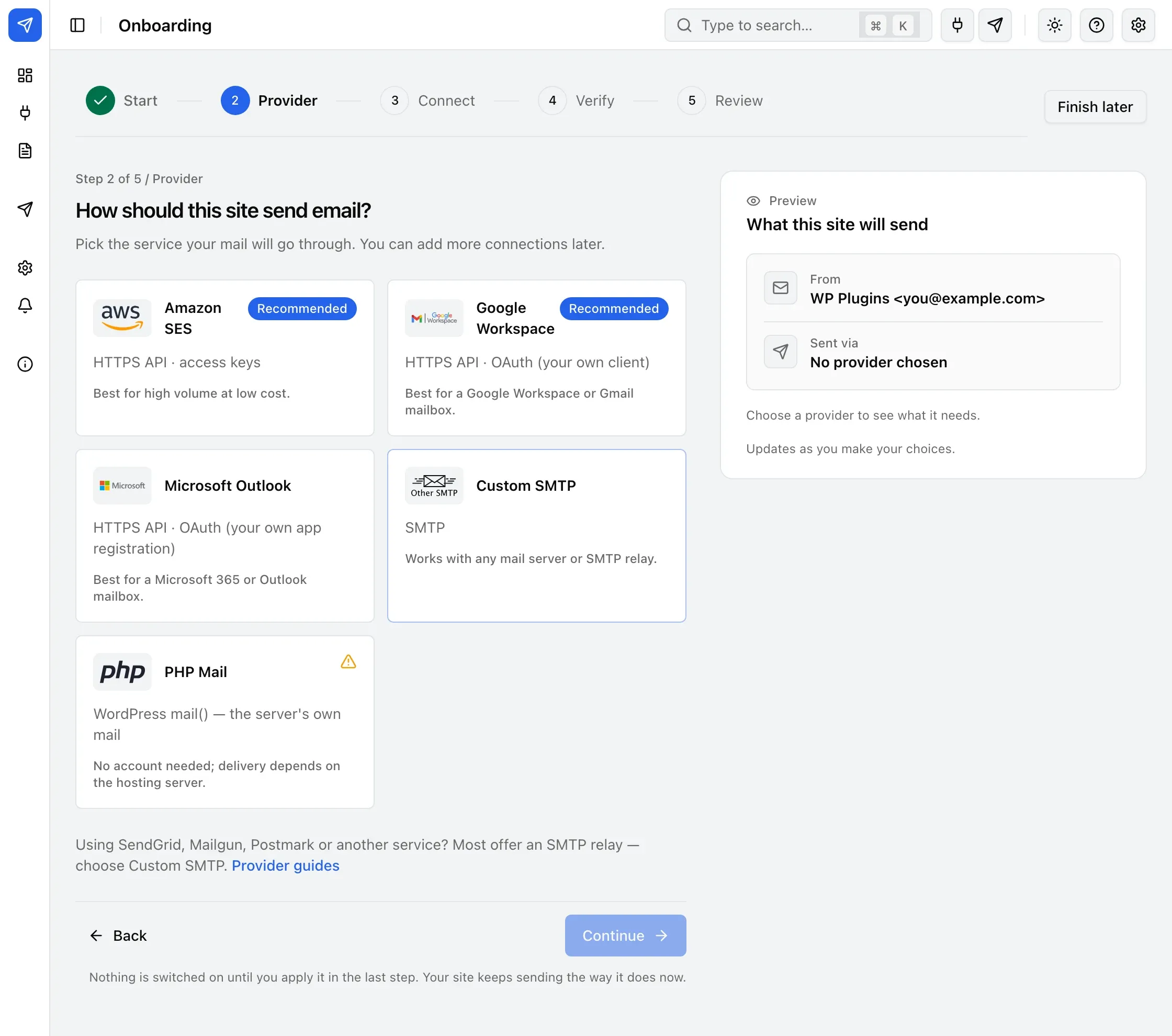
Setup wizard, provider step -
On Connect, enter what that provider gives you: an API key, a sign-in with your Google or Microsoft account, or SMTP details. The provider’s setup guide in the wizard says where to find each value.
-
On Verify, click Check connection to test the provider credentials, then send a Test email. For PHP Mail, there is no provider connection to check; send the test email directly.
-
On Review, check the summary and click Apply and finish. The connection is switched on and becomes your primary connection.
The wizard shows only while no connection is active. After setup, add more connections under Mailers → Add Connection.
Next steps
- Send a test email if you chose Skip for now on Verify.
- Choose a mailer for what your provider needs, in detail.
- Import from another SMTP plugin if another SMTP plugin already runs on this site.